Turn your GitHub profile into a designed, self-updating README in about ten minutes. You'll create one repository, make a token that can write to it, build your README in the studio and publish it.
You need
A GitHub account.
A public repository named exactly like your username (step 1).
A fine-grained token that can write to that one repository (steps 2 to 8).
Everything runs in your browser. The token is sent only to GitHub and is never stored.
Part 1
Create your profile repository
1Create your-username/your-username
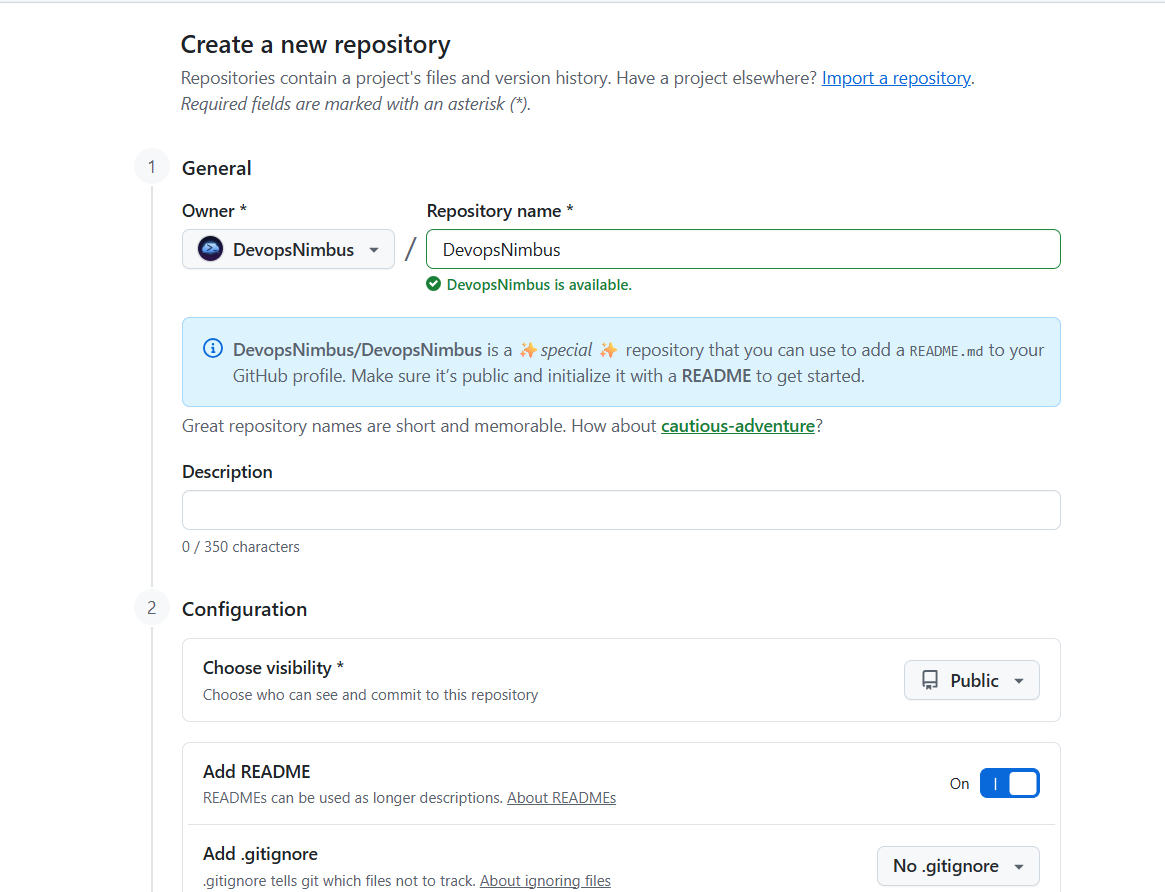
On GitHub, click + → New repository. Name it exactly like your username; GitHub confirms it's the special repository that shows on your profile. Set it to Public, switch Add README on, then click Create repository.
A public repository named exactly like your username, with a README.
Part 2
Create a token
Glassfolio needs permission to commit the README, its images and the daily-update workflows to your profile repository. A fine-grained token limited to that one repository is the safest way to give it.
2Open Settings
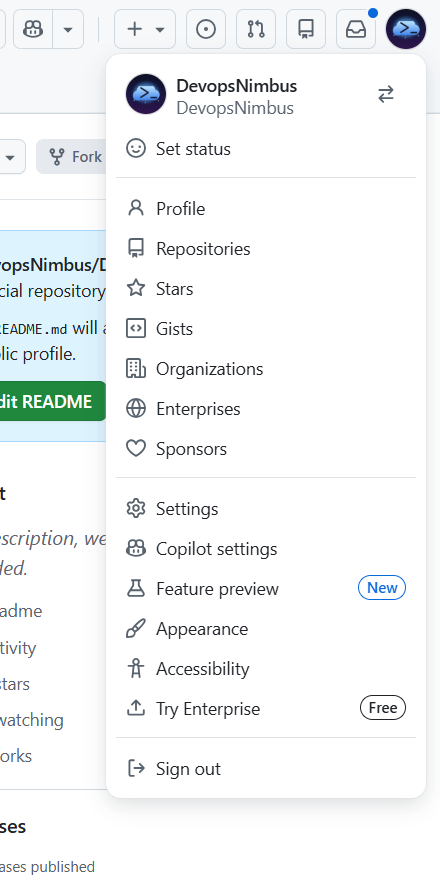
Click your avatar in the top right and choose Settings.
The profile menu.
3Open Developer settings
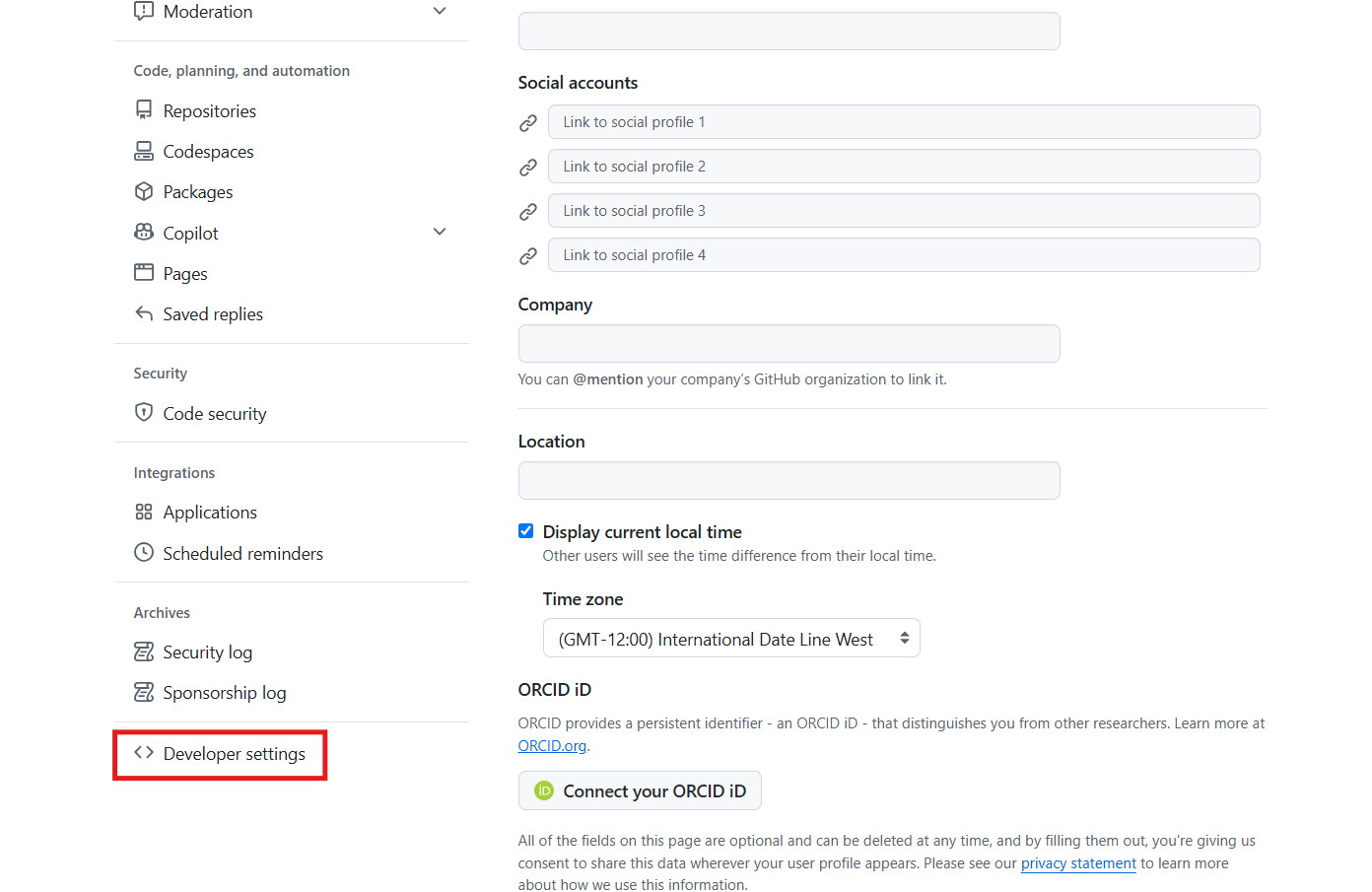
Scroll to the bottom of the left menu and click Developer settings.
Developer settings is the last item in the menu.
4Fine-grained tokens
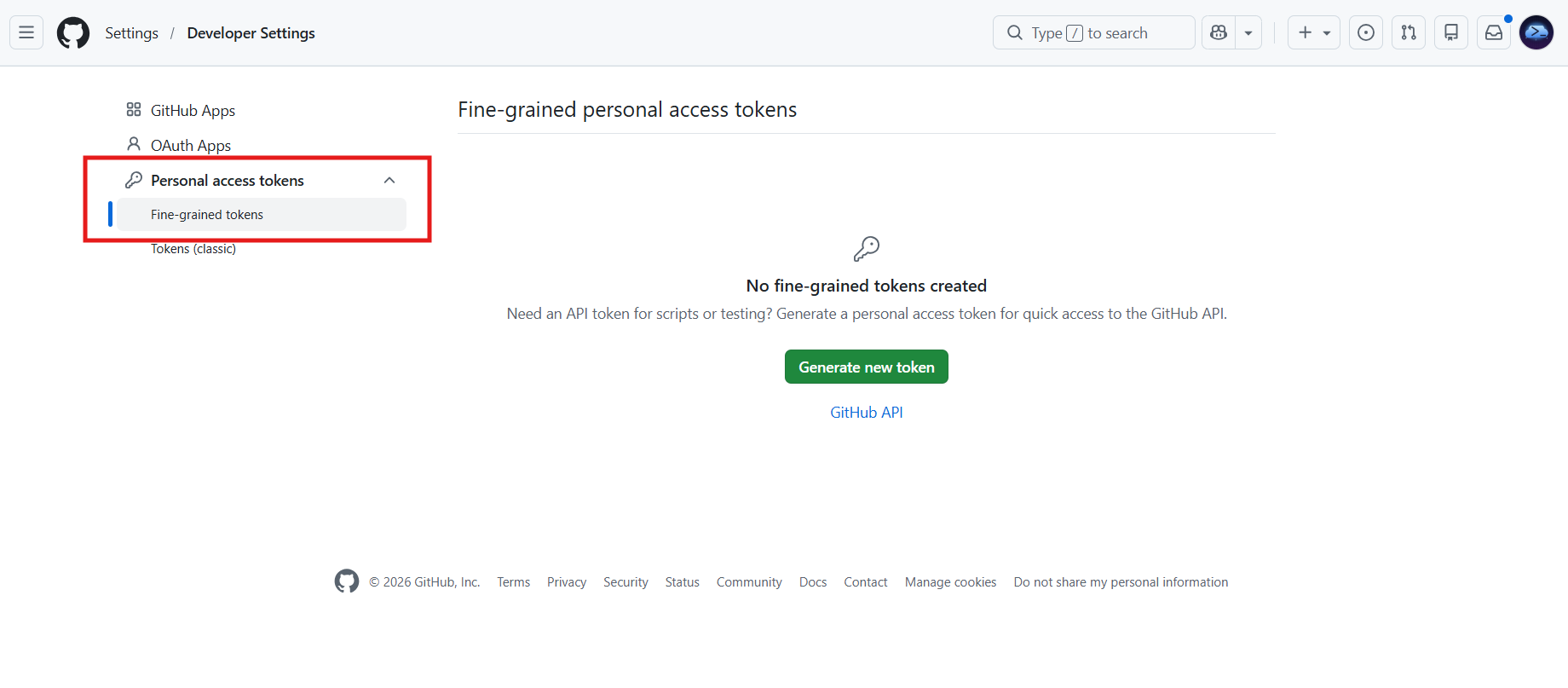
Open Personal access tokens → Fine-grained tokens and click Generate new token.
Generate a new fine-grained token.
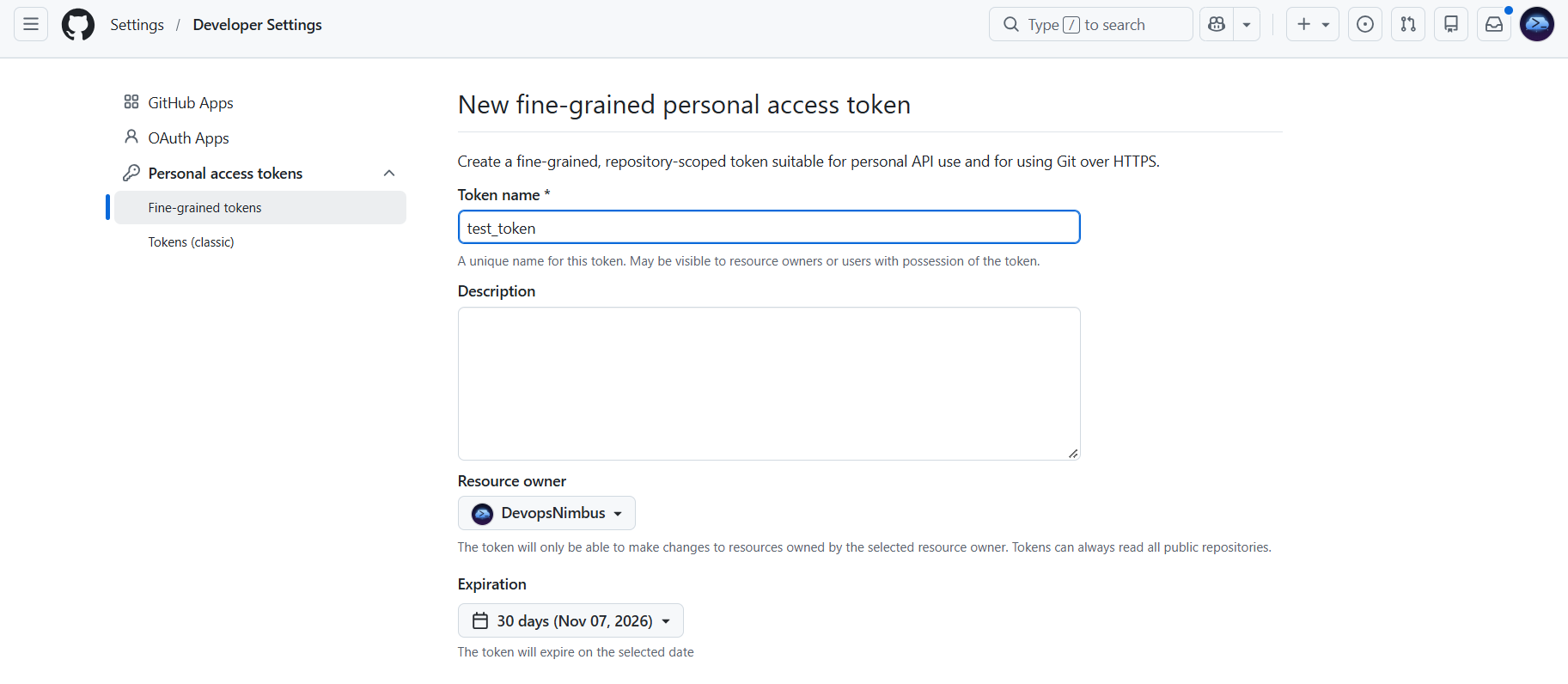
5Name it and pick an expiry
Give the token a name you'll recognise, for example profile-readme. Keep Resource owner as your own account and choose an expiry. You only need the token when you publish from Glassfolio; the daily updates use GitHub's own temporary token, so an expired token doesn't stop them.
Name, owner and expiry.
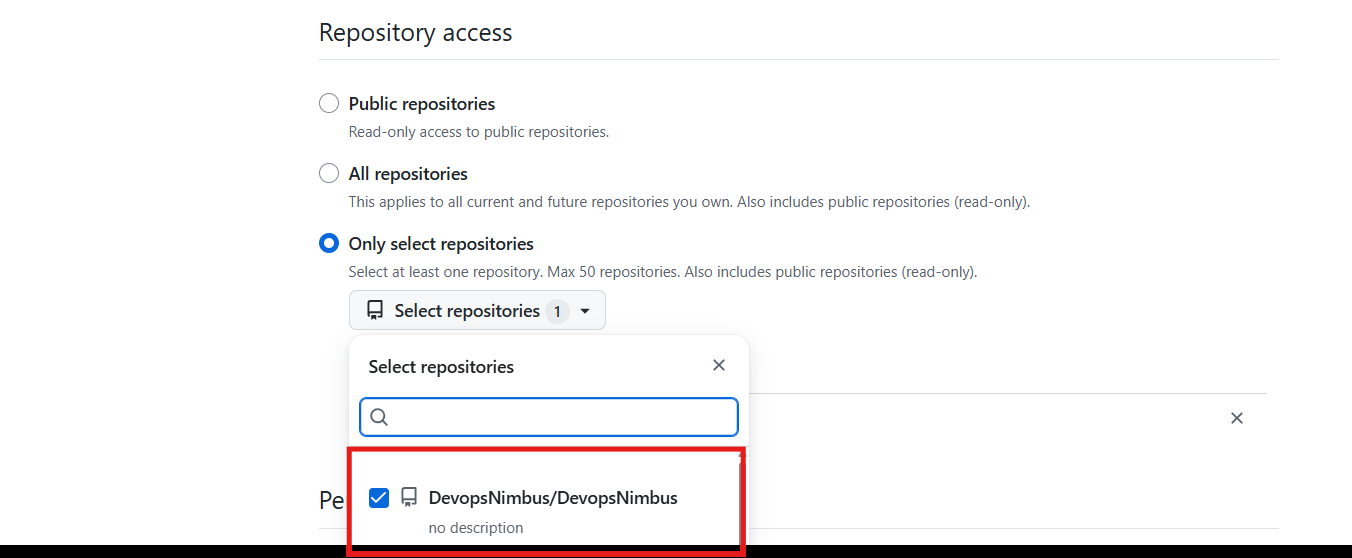
6Only your profile repository
Under Repository access, choose Only select repositories and tick your-username/your-username.
Limit the token to the one repository.
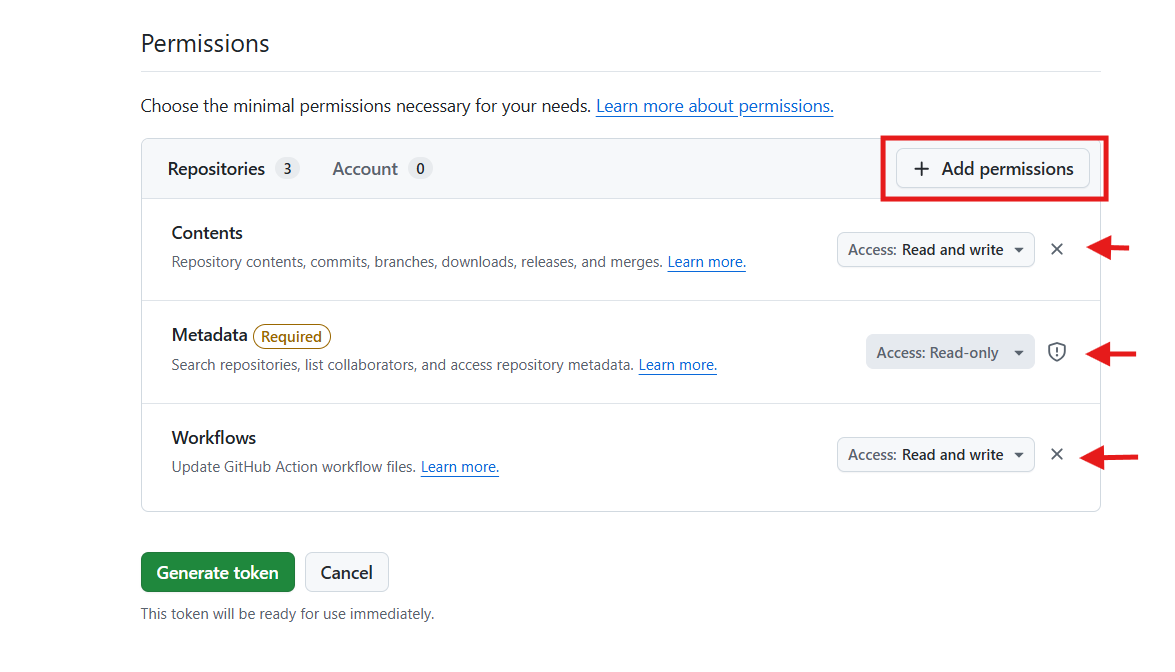
7Contents and Workflows: Read and write
Under Permissions, click Add permissions and set:
Permission
Access
Why
Contents
Read and write
Commit the README, banner and cards
Workflows
Read and write
Add the daily-update workflows in .github/workflows/
Metadata
Read-only
Added by GitHub automatically
Nothing else is needed. Then click Generate token.
Without Workflows: Read and write, your README and cards are still published, but the daily updates are left out and Glassfolio tells you exactly what to add. You can edit the token's permissions later; you don't need a new one.
Two permissions, both read and write.
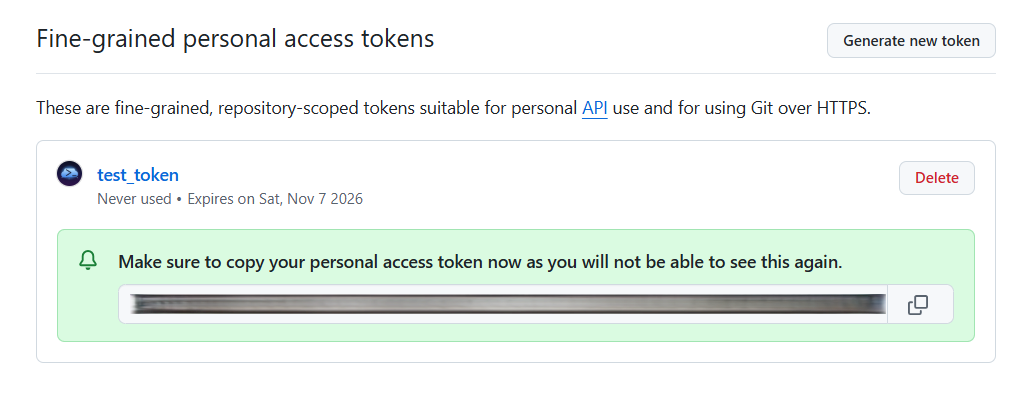
8Copy the token
Copy the token now: GitHub shows it only once. Keep it private and don't paste it anywhere except Glassfolio.
GitHub shows the token only once.
Part 3
Make your README
9Open Glassfolio
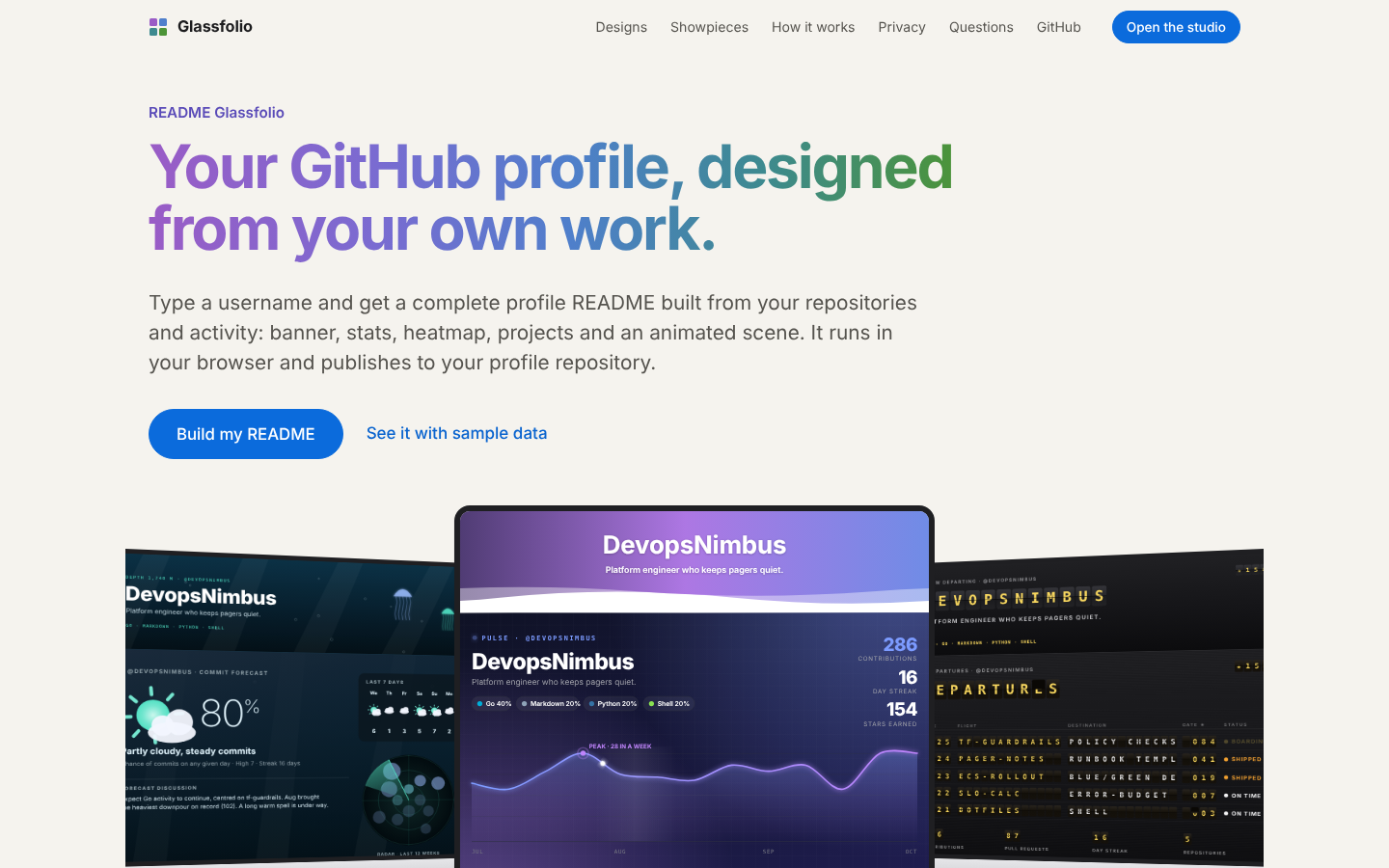
Go to the home page and press Build my README. It takes you to the studio with the cursor in the username box. The studio shows a sample profile until you load yours.
The home page. Build my README takes you to the studio.
10Enter your username and build
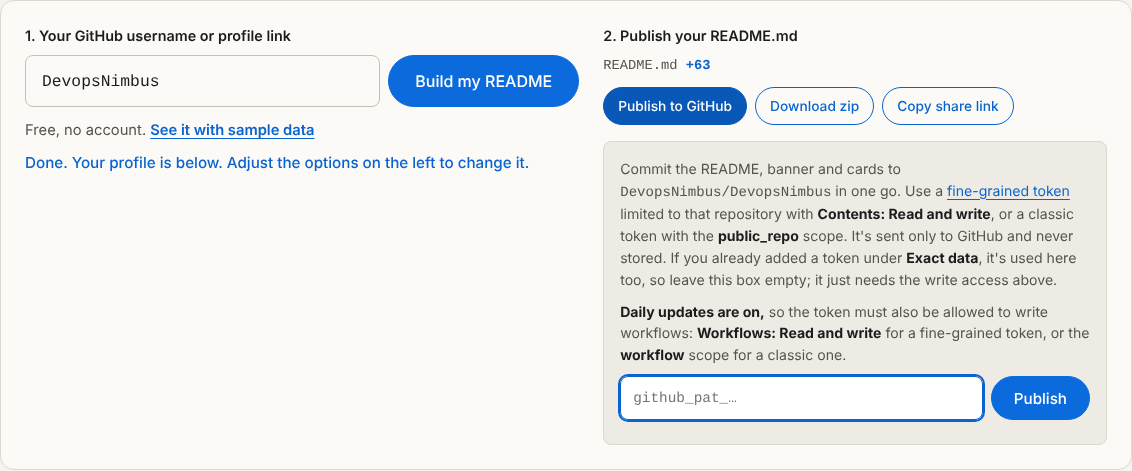
In 1. Your GitHub username or profile link, paste your profile link (for example https://github.com/your-username) or just your username, then press Build my README. The preview below fills with your own repositories and activity.
Step 1 of the studio on the left, publishing on the right.
11Exact data (optional)
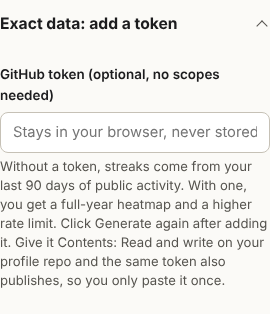
Open Exact data: add a token at the bottom of the options and paste the same token, then press Build my README again. With a token, the heatmap and streaks cover the past year instead of the last 90 days of public activity, and the same token is used for publishing, so you only paste it once.
The token field under Exact data.
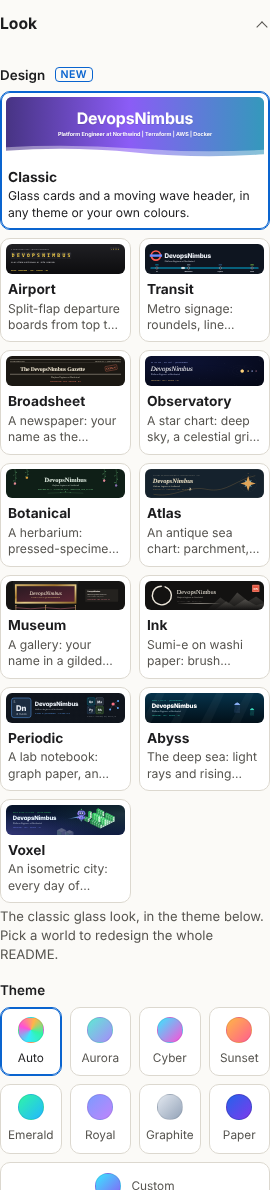
12Choose the look
Under Look, choose in order:
Design: the classic glass look, or one of eleven designs that restyle the whole README from banner to footer.
Theme: a colour theme, or Custom with your own two colours. In a design, Auto keeps the design's own colours; any other theme recolours all of it.
Showpiece: the animated scene under your banner. Auto uses the look's own scene; None leaves it out.
The preview updates as you choose, and the Light and Dark switches above it show both versions.
Design first, then theme.
13About you
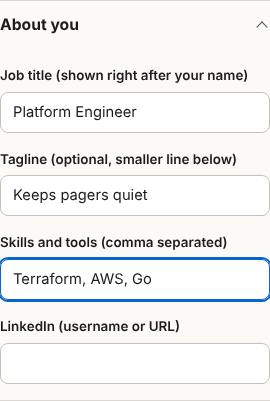
Fill in what you'd like visitors to read first:
Job title: shown right after your name.
Tagline: a smaller line under it.
Skills and tools: comma separated; the first ones also appear in the header.
LinkedIn: adds a LinkedIn button to Connect.
For employers is optional too: what you're open to, a résumé link, certifications, a recruiter summary, skills backed by your repositories, and impact numbers for your projects.
About you.
14Projects and daily updates
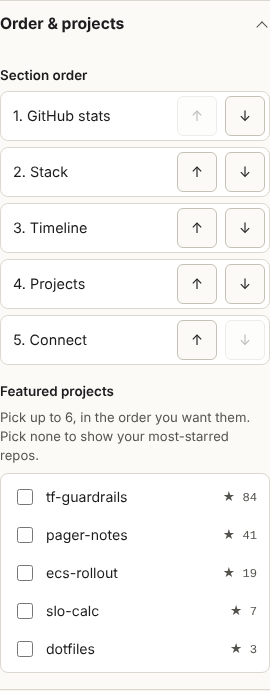
Under Order & projects, move sections up or down and tick up to six repositories to feature, in the order you want them. Tick none to show your most-starred ones.
Under Daily updates, leave Keep my stats fresh every day ticked. It adds the workflows that refresh your profile automatically. It becomes available once your own profile is loaded.
Section order and featured projects.
15Sections
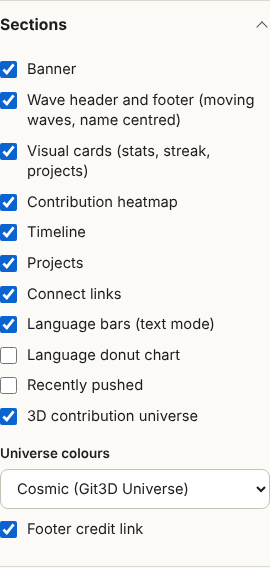
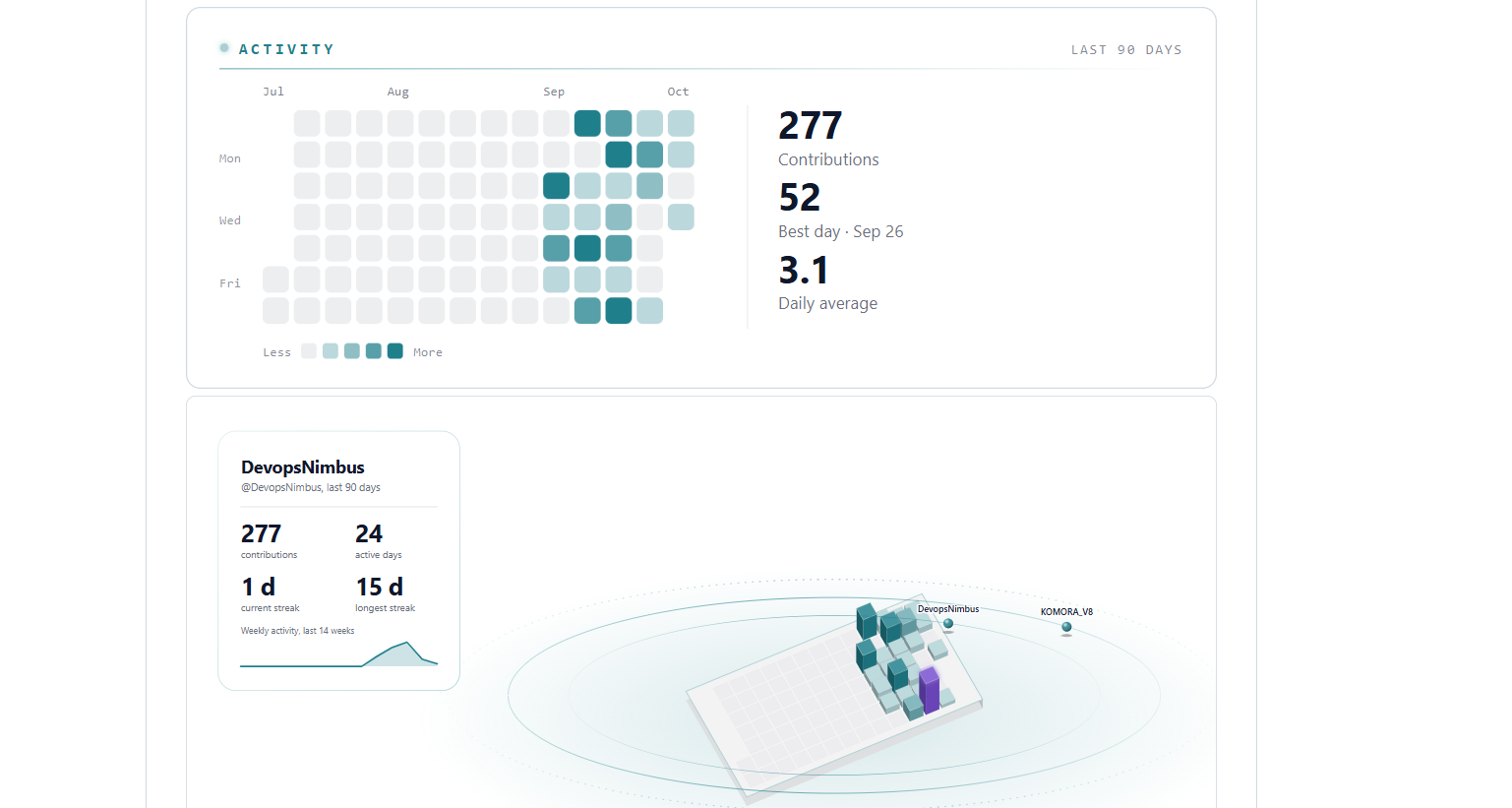
Under Sections, tick or untick any part of the README: the wave header and footer, visual cards, contribution heatmap, timeline, projects, Connect links, the 3D contribution universe and the footer credit are on by default. Recently pushed and the Language donut chart are off until you tick them.
The Make it even better box lists quick wins, such as a job title or repository descriptions. Click a tip to jump to the field that fixes it.
Switch any section on or off.
Part 4
Publish
16Open the publish panel
In 2. Publish your README.md, press Publish to GitHub. The panel says which repository it will commit to and which permissions the token needs.
The publish panel, shown here for the sample account.
17Paste the token and publish
Paste your token and press Publish. If you already added it under Exact data (step 11), you can leave this box empty.
18Done
You'll see Published N files with the time of your first daily run, and links to your profile and to the Actions tab.
If it says Daily updates were NOT added, the token is missing Workflows: Read and write (step 7). Your README is live anyway; fix the token and publish again to add the daily updates.
Part 5
Check your profile
19Your profile repository
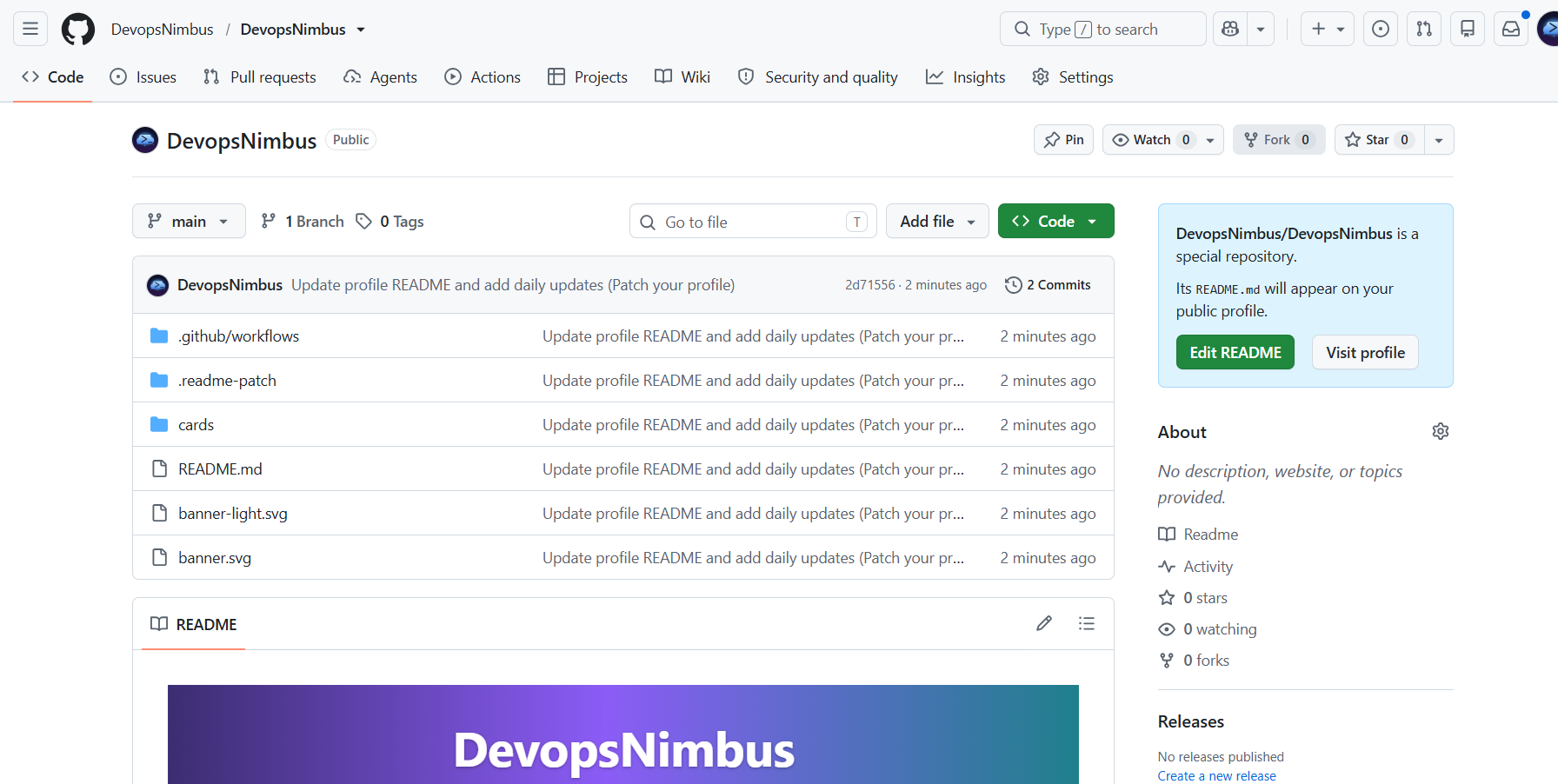
Your repository now contains:
README.md, banner.svg, banner-light.svg and a cards/ folder: the profile and its images, in a dark and a light version.
.github/workflows/update-readme.yml: rebuilds everything once a day.
.github/workflows/update-universe.yml: refreshes the 3D universe every 6 hours.
.readme-patch/: your saved choices (config.json) and the generator the workflows run.
The files Glassfolio commits.
20Your profile
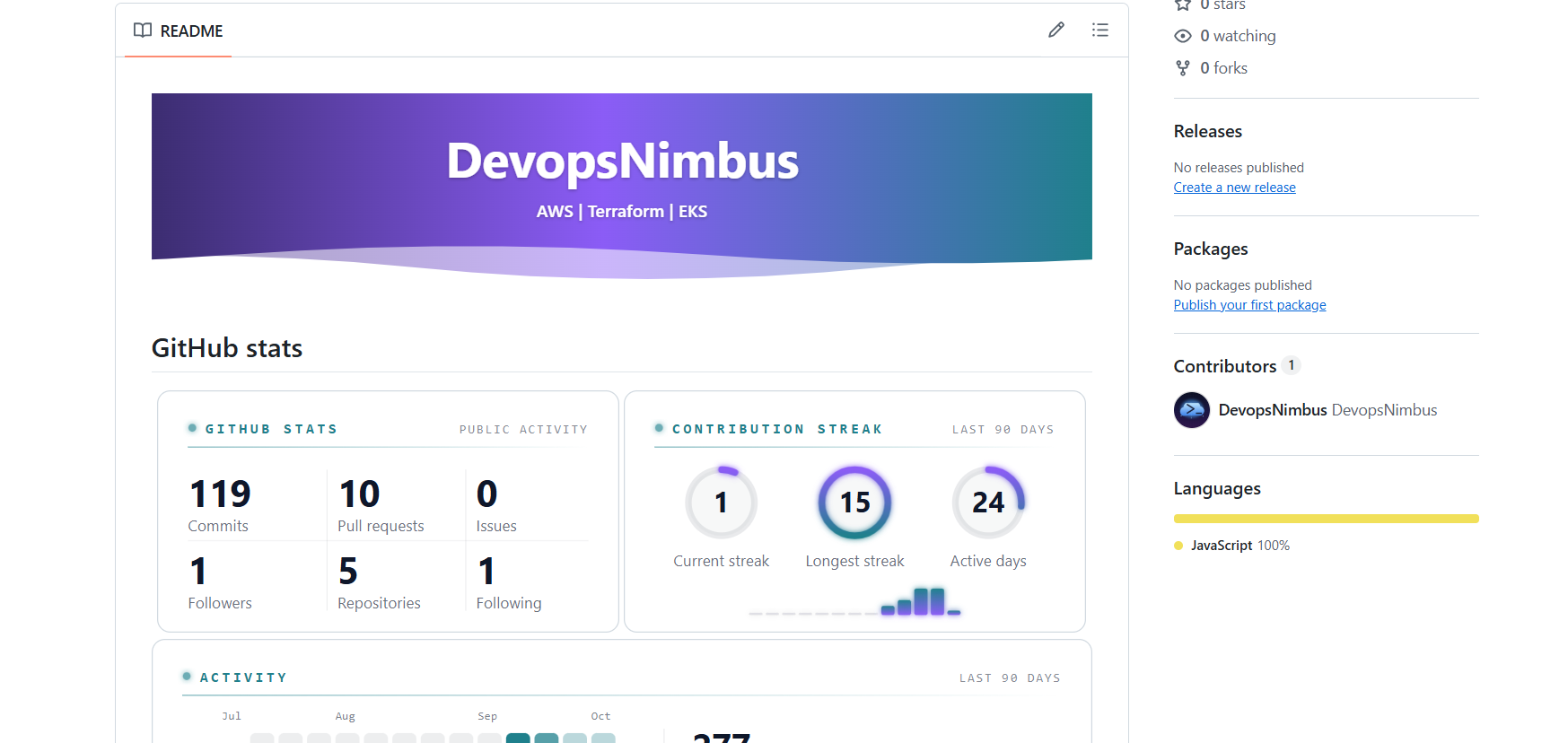
Open your profile. Visitors on GitHub's light theme see the light version, and visitors on the dark theme see the dark one.
The top of a published profile.The heatmap and the 3D universe.
Run the daily update now (optional)
Open your repository's Actions tab, choose Update profile README and press Run workflow to see it work without waiting. A successful run makes an Update profile stats commit when your numbers have changed.
Change something later
Open the studio again, build with your username, change the options and publish again. The daily workflows always use your latest choices. Don't edit README.md or the images by hand: the next daily run rebuilds them from your choices.
Troubleshooting
What you see
What to do
Daily updates were NOT added
Give the token Workflows: Read and write (step 7) and publish again. The message names what's missing for your token.
The token can't write to this repository
The token needs Contents: Read and write on your-username/your-username, and the repository must be in its Repository access list (step 6).
Create a public repository named …
Create the profile repository first (step 1). It must be public and named exactly like your username.
GitHub's rate limit is used up
Wait a little, or add your token under Exact data (step 11).
The page looks like an older version
Press Ctrl+Shift+R (Cmd+Shift+R on a Mac). The page also reloads itself once when a newer version has been deployed.
The profile still shows old images
GitHub caches images for a few minutes. Wait, then refresh the profile.
The daily workflow stopped
GitHub pauses scheduled workflows in a public repository after 60 days without activity. Re-enable it in the Actions tab.
To stop the daily updates, delete the two files in .github/workflows/ or disable them in the Actions tab. Your README stays as it is.